2.1 HTML Basics
Updated Jun 21, 2026
HTML
HTML (HyperText Markup Language) is the standard language used to create webpages.
HTML tells the browser:
- What content exists on a page
- How content is organized
- The meaning of different pieces of content
Every website you visit uses HTML.
HTML Structure
Every HTML document follows a standard structure.
Example
index.html
<!DOCTYPE html>
<html>
<head>
  <title>hello, title</title>
</head>
<body>
  hello, body
</body>
</html>
Visual Structure
HTML Document
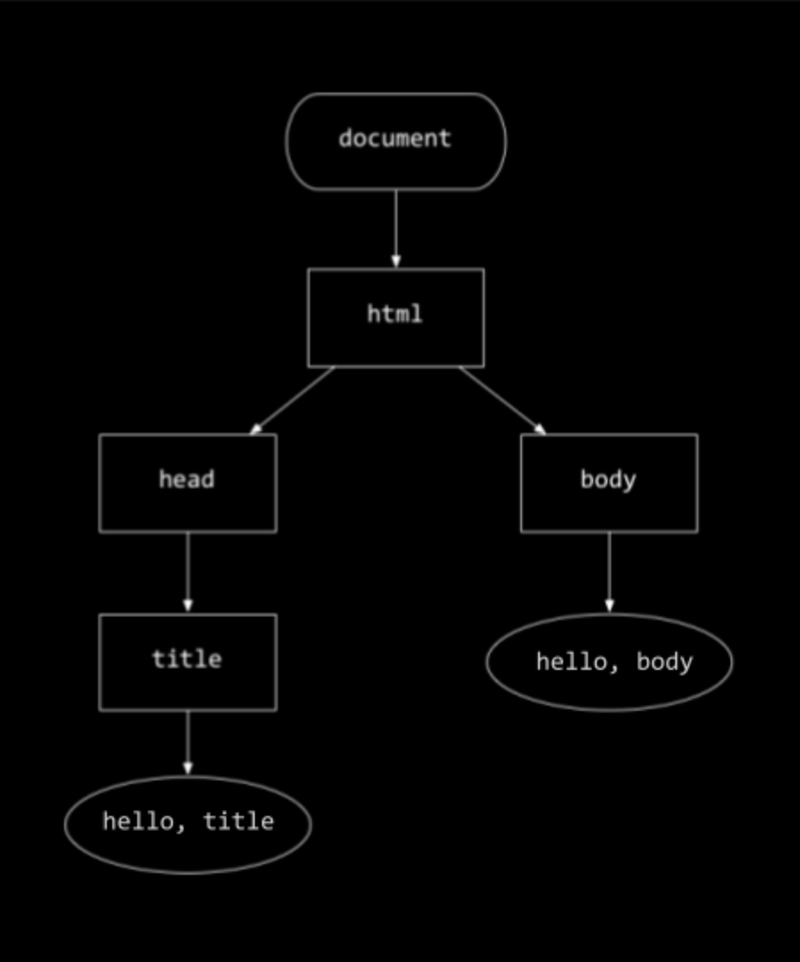
We will examine each of these parts individually.
DOCTYPE
Every HTML document begins with:
<!DOCTYPE html>This declaration tells the browser that the document uses HTML5.
Important
Without the DOCTYPE declaration, browsers may enter compatibility mode and render pages differently.
For this reason, <!DOCTYPE html> should always be the first line of every HTML document.
Example
<!DOCTYPE html>
<html>
  ...
</html>
html Element
The <html> element is the root element of every webpage.
Everything on the page lives inside this tag.
Example
<html>
  <head>
  </head>

  <body>
  </body>
</html>
In modern websites, we usually specify the language:
<html lang="en">
This helps:
- Browsers
- Search engines
- Screen readers
- Accessibility tools
understand the language of the document.
head Element
The <head> element contains information about the webpage.
Most of this information is not displayed directly to users.
Example
<head>
  <title>My Website</title>
  <meta charset="UTF-8">
</head>
Common Elements
head
│
├── title
├── meta
├── link
├── script
└── style| Element | Purpose |
|---|---|
| title | Sets the browser tab title |
| meta | Provides information about the page |
| link | Connects external resources such as CSS |
| script | Loads JavaScript |
| style | Contains CSS styles |
body Element
The <body> element contains everything visible on the webpage.
Example
<body>
  <h1>Welcome</h1>
  <p>This is my website.</p>
</body>
Everything users see belongs inside the body.
Examples of Content
body
│
├── Headings
├── Paragraphs
├── Images
├── Forms
└── Buttons
Meta Tags
Meta tags provide information about a webpage.
They help browsers and search engines understand the page.
Character Encoding
<meta charset="UTF-8">This enables support for multiple languages and special characters.
Example:
<p>नेपाल 🇳🇵</p>Viewport Meta Tag
<meta name="viewport" content="width=device-width, initial-scale=1.0">This tells mobile devices how to display the page.
Without it:
- Pages may appear zoomed out
- Layouts may break on mobile devices
With it:
- Pages become responsive
- Content adapts to screen size
Meta Description
<meta
  name="description"
  content="Learn HTML from beginner to advanced."
>
Search engines may display this description in search results.
Tags and Attributes
HTML is built using tags.
Example
<h1>Hello</h1>Structure
| Part | Description |
|---|---|
| <h1> | Opening Tag |
| Hello | Content |
| </h1> | Closing Tag |
Most HTML elements follow this pattern.
Attributes
Attributes provide additional information about an element.
Example:
<a href="https://google.com">
  Google
</a>| Part | Meaning |
|---|---|
| href | Attribute |
| https://google.com | Value |
General syntax:
<tag attribute="value">Elements can have multiple attributes.
Example:
<img
  src="image.jpg"
  alt="Nature"
  width="300"
/>
HTML Comments
Comments are notes written for developers.
Browsers completely ignore comments.
Example
<!-- This is a comment -->Practical Example
<!-- Navigation Section -->

<nav>
  ...
</nav>
Comments are useful for:
- Documentation
- Explanations
- Organizing code
- Temporarily disabling code
Case Insensitivity
HTML tags are case-insensitive.
The following examples work the same:
<h1>Hello</h1>

<H1>Hello</H1>

<H1>HELLO</H1>
Best Practice
Use lowercase tags:
<h1>Hello</h1>This is the modern HTML convention.
Whitespaces
Browsers automatically ignore extra spaces and line breaks.
Example
<p>Hello World</p>Output
Hello World
Even if content appears on multiple lines:
<p>
  Hello

  World
</p>
Output
Hello World
The browser collapses multiple spaces into a single space.
Preserving Whitespace with pre
Sometimes we want spacing and line breaks to remain exactly as written.
For this purpose, HTML provides the <pre> element.
<pre>
Hello

World
</pre>
Output
Hello
World
Notice that all spacing remains unchanged.
HTML Entities
Some characters have special meaning in HTML.
Example:
<p><h1></p>The browser interprets <h1> as an HTML tag.
To display it as plain text, we use HTML entities.
<p><h1></p>Output
<h1>
Common HTML Entities
| < | < |
|---|---|
| > | > |
| & | & |
| “ | " |
| ’ | ' |
| Space | |
| © | © |
| ® | ® |
| ™ | ™ |
Example
<p>© 2025 Samir</p>Output
© 2025 Samir
Another example:
HTML CSSOutput
HTML CSS
Key Takeaway
Every HTML page starts with the same foundation:
index.html
<!DOCTYPE html>
<html lang="en">
<head>
  <meta charset="UTF-8">
  <title>Page Title</title>
</head>
<body>
  Content Goes Here
</body>
</html>
As we continue learning HTML, everything we build will be placed inside this structure.
This structure forms the foundation of every website on the Internet.